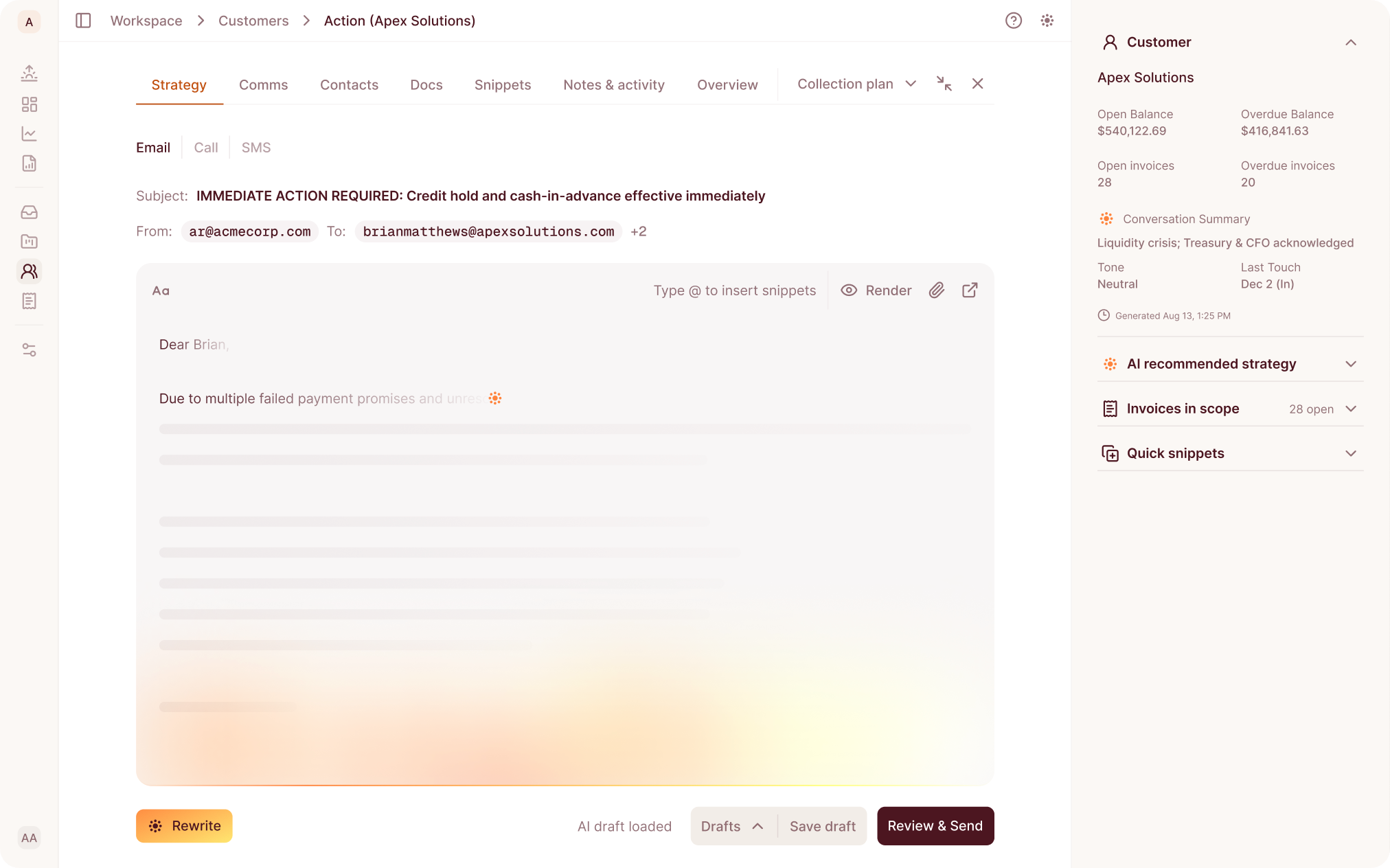
The Last Check Before It Sends
Every automatic reply is checked again right before it actually sends, because things can change between when a reply is drafted and when it goes out. If someone has frozen the case in the meantime, the reply doesn’t go. If the address has bounced, or your team has blocked it, or the customer has opted out, the reply doesn’t go. If your company has hit its daily sending limit, it waits.
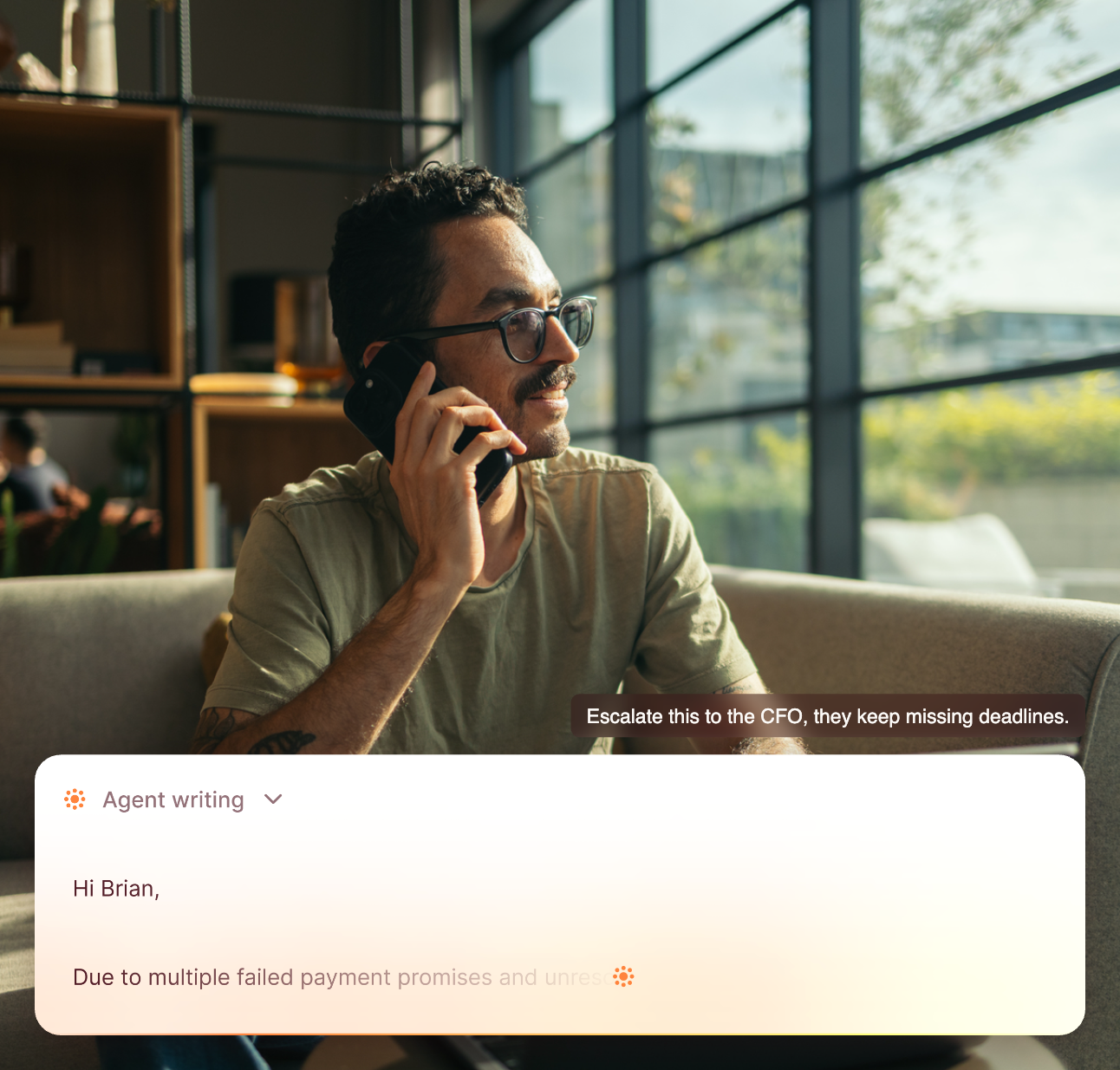
Freezing a case is how you keep automation off a thread you’re actively negotiating on, even if a reply for it was already sitting in the queue to send. And blocking an address stops automated email specifically. A person on your team writing that same address manually gets a warning, not a hard stop, because a person’s judgment comes first.
One thing worth being precise about: your team records an opt-out, or it arrives as an unsubscribe or a spam complaint. Daylit doesn’t read an opt-out out of the words in a reply.
The Part That Stays Human
While AI handles most of it, the riskier replies stay held for review. Missing-information asks set to Auto-send don’t actually send on their own until Daylit approves unattended sending for your company specifically, an internal check that sits on top of your own settings.
A few other things worth knowing going in. It doesn’t send the invoice as an attached PDF, replies are body-only, with an invoice list and a pay link. It doesn’t answer any email a customer sends, only the four routine requests and three missing-information asks described above; everything else stays with your team. And it doesn’t quietly change its own behavior over time. Every reply follows the rules you set, until you change them yourself in Settings.
How It Works in Daylit, End to End
When a customer emails in, Daylit reads it and works out what they’re asking for. If it’s a routine request, it drafts a reply from your template. If something’s missing, it asks for just that piece. Either way, the reply sits as a draft or moves toward auto-send, exactly as you set that reply type up.
If it’s headed for auto-send, it waits a short, cancellable moment, and right before it actually goes, it’s checked one more time: is the case frozen, is the address bad, has the daily limit been hit. If everything clears, the reply lands in the same email thread the customer started, not a new one.
To see it, open Settings, then Outreach Policy, then the Auto-reply tab. That’s where each reply type gets its mode and its template.

If these are the emails sitting in your inbox right now, book a demo and we’ll show you exactly what an automated reply would say.
The Takeaway
The question that stops AR teams from automating their inbox was never “can the AI write a decent email.” It’s “what will it actually say, and can I see it before it goes out.” Now there’s an answer. The reply comes from a template your team wrote. The facts in it can’t be changed by AI wording. Every automatic send gets checked again right before it happens, and the riskier replies stay held until Daylit signs off, not just you.
If you’re weighing whether to hand off any of your inbox, start with the reply types that carry the least risk, like invoice copies, and leave the rest as drafts. Watch what would have gone out for a week before you turn anything to auto-send.
Frequently Asked Questions
Will it email my customers without us approving it?
Only for the reply types you set to Auto-send. Everything else is a draft your team sends, or it’s off. Auto-send replies wait a short moment you can cancel, and the riskier missing-information replies are held for review until Daylit has approved unattended sending for your account.
What if the AI makes up a number?
The reply is your template. If you turn on AI wording, it only rewrites the greeting and acknowledgement, and a checker rejects any change to your template’s fields or any invented date or invoice number. If it’s rejected, your template goes out as written.
What if we’re in the middle of a negotiation with that customer?
Freeze outreach on the case. Automatic replies on that thread stop, even one that was already drafted and waiting to send.
Can I see what it would send before I turn it on?
Yes. Each reply type shows its template before you turn it on, and the missing-information replies show what triggers them, the wait, and the exact email they’d send.
Does it attach the invoice?
No. It sends the invoice list and a pay link in the body of the email, not an attached PDF.
Does it answer every email a customer sends?
No. It covers routine requests like invoice copies, statements, payment instructions, and payment confirmations, plus asking for what’s missing on a promise to pay, a dispute, or a wrong contact. Anything else stays with your team.